> ## Documentation Index
> Fetch the complete documentation index at: https://docs-test.symmetry.com/llms.txt
> Use this file to discover all available pages before exploring further.
# Introduction to Symmetry Guides
> Symmetry Guides is a proactive, real-time compliance intelligence hub built on the same trusted tax research database that powers Symmetry’s payroll tax products.
Symmetry Guides is a proactive, real-time compliance intelligence hub built on the same trusted tax research database that powers Symmetry’s payroll tax products.
Guides delivers real-time tax rates, wage bases, and compliance data across 7,000+ U.S. jurisdictions, as well as rate information for Canadian taxes.
Additionally, Guides provides agency-specific contact and tax filing information.
## How to Access Symmetry Guides
Symmetry Guides authenticates using Auth0. You can access the application through the tile on your Client Support Center home page, or directly at [guides.symmetry.com](https://guides.symmetry.com/search).
## Guides UI overview
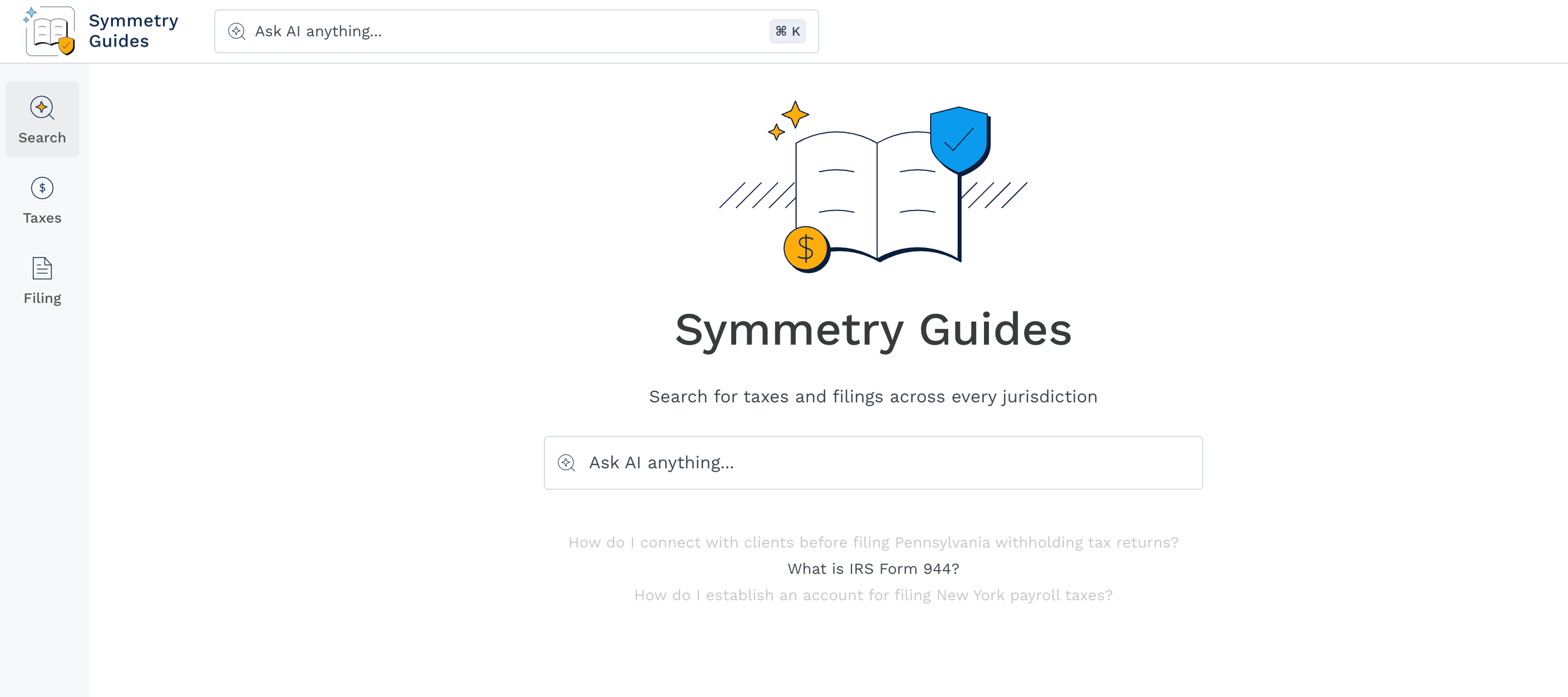
Symmetry Guides is organized around three main areas, reflected in the left navigation: **Search**, **Taxes**, and **Filing.** A search bar at the top of the page lets you **Ask AI anything**.
### Search
Use **Search** to learn about taxes and filing, or to access tax or filing information about specific jurisdictions. Begin typing into the text field at the center of the screen (or the top of the page) and the blue **Ask AI** button will appear to the right of your written text. To initiate the search, click the **Ask AI** button or press the enter button on your keyboard.
Ask your question in plain language, for example about a local rate or a state’s withholding filing rules, and review the summarized answer together with its sources.
Example prompts will appear below the search box in the center of the page.
**Search** page view:
 ### Taxes
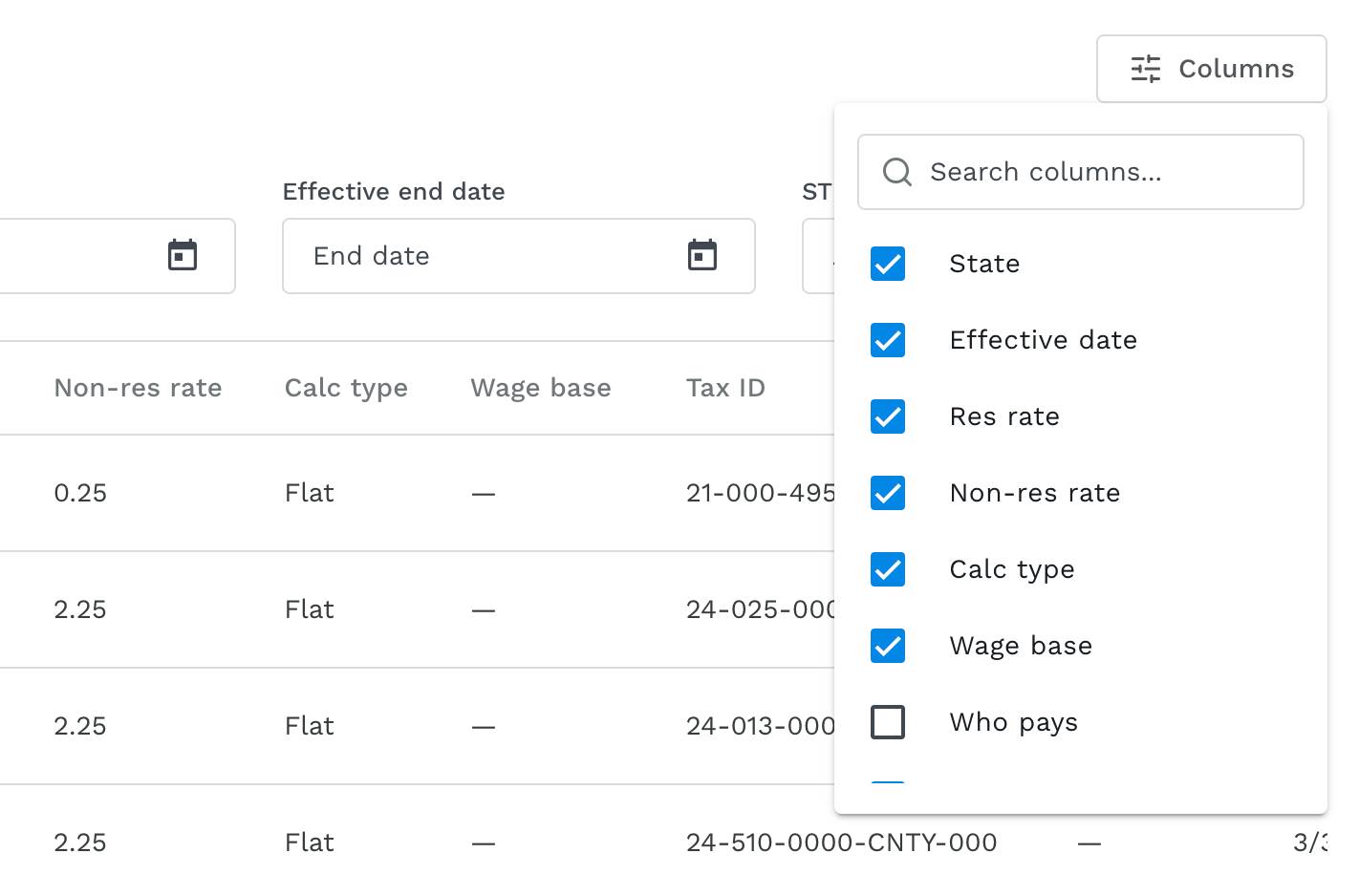
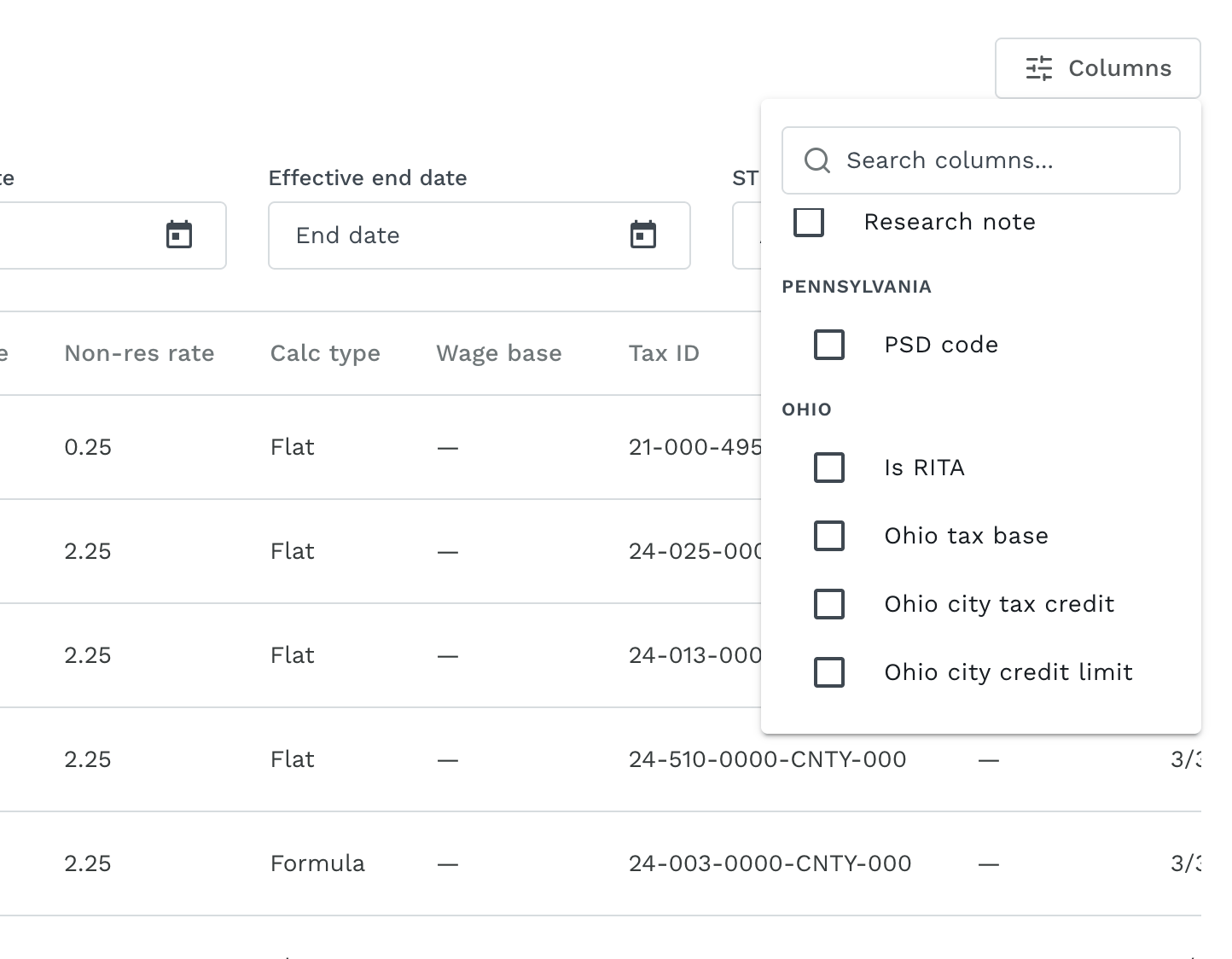
The **Taxes** section is a searchable view of tax-specific information. Filter by jurisdiction, tax name or tax ID, tax effective date, or STE Release to find a specific tax or specific group of taxes. Use the **Columns** filter to the top right of the page to customize the column data visible for the tax rows.
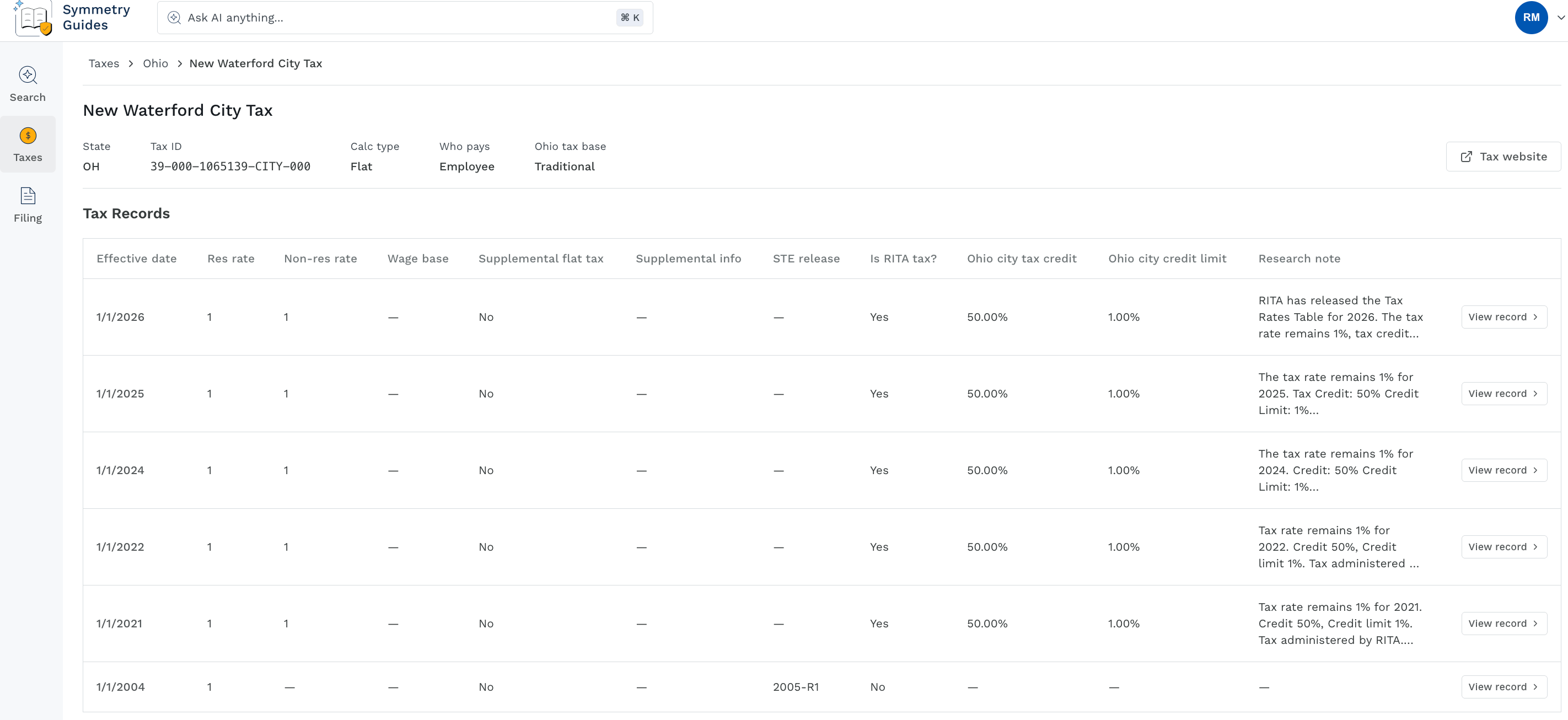
Click a tax row to see additional tax information, along with tax record history.
Within the tax detail, click the **View record** button to the right of the screen to see tax history details for that line item.
**Taxes** page:
### Taxes
The **Taxes** section is a searchable view of tax-specific information. Filter by jurisdiction, tax name or tax ID, tax effective date, or STE Release to find a specific tax or specific group of taxes. Use the **Columns** filter to the top right of the page to customize the column data visible for the tax rows.
Click a tax row to see additional tax information, along with tax record history.
Within the tax detail, click the **View record** button to the right of the screen to see tax history details for that line item.
**Taxes** page:
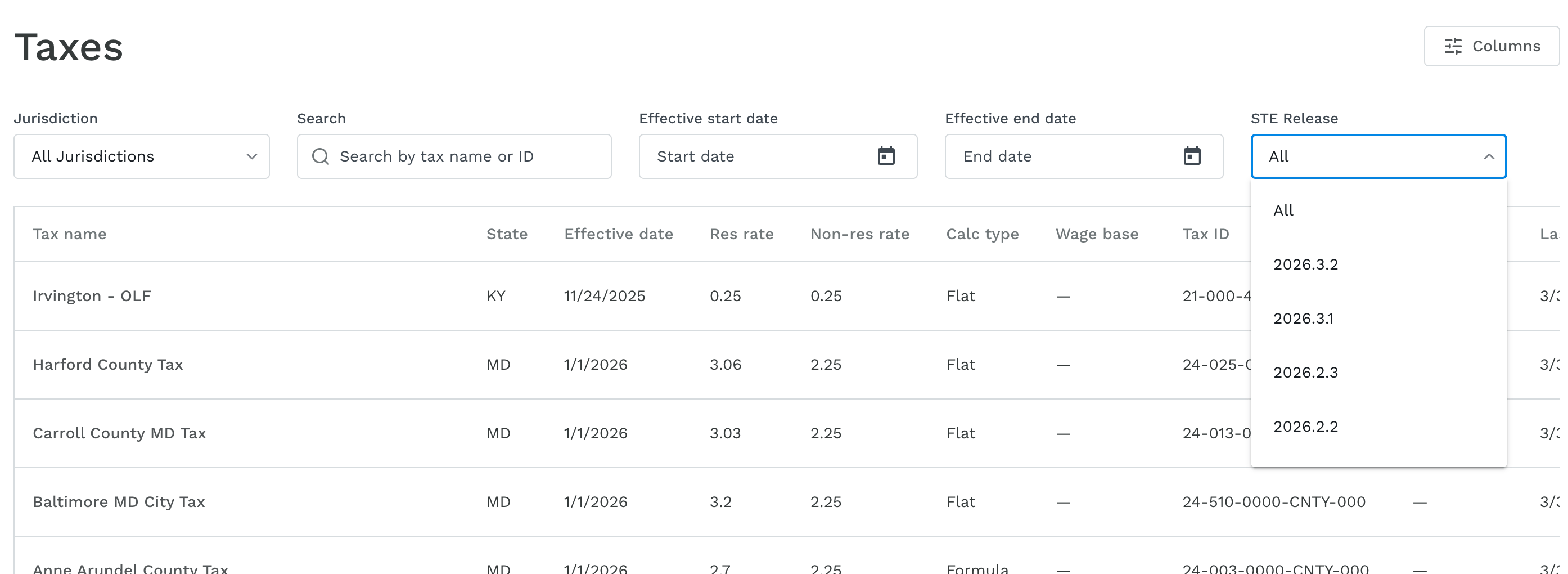 **Taxes** page (viewing **Columns** filter):
 **Taxes** (after clicking into a specific tax row):
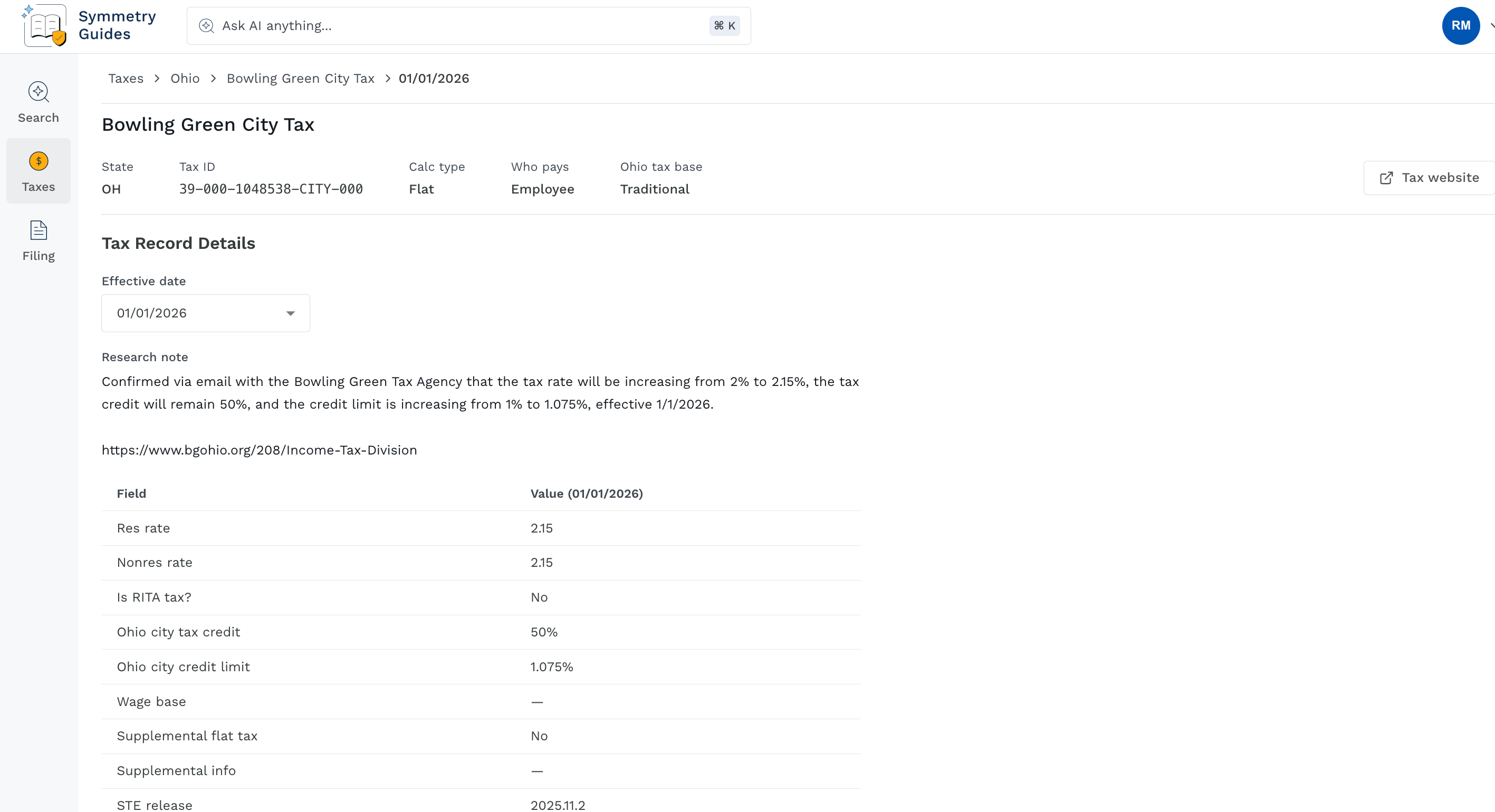
 **Tax Record Details**:
 ### Filing
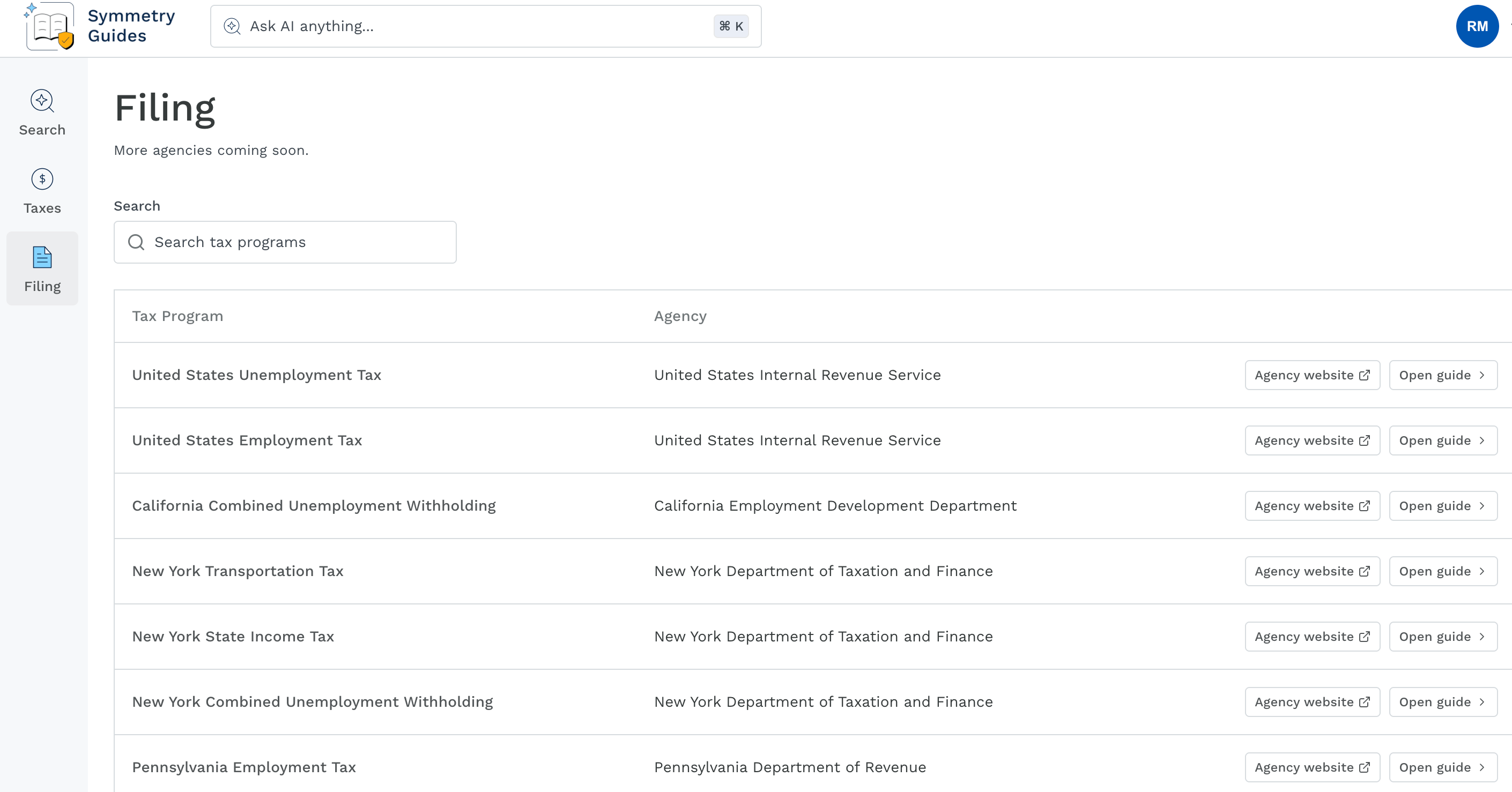
The **Filing** section provides filing guides in a table format. You can use the open text **Search** field to search for a specific tax program within this page.
Select a row to open the **Tax Program** detail for that program; this will be your primary place for agency-specific filing and registration content.
**Filing** page:
### Filing
The **Filing** section provides filing guides in a table format. You can use the open text **Search** field to search for a specific tax program within this page.
Select a row to open the **Tax Program** detail for that program; this will be your primary place for agency-specific filing and registration content.
**Filing** page:
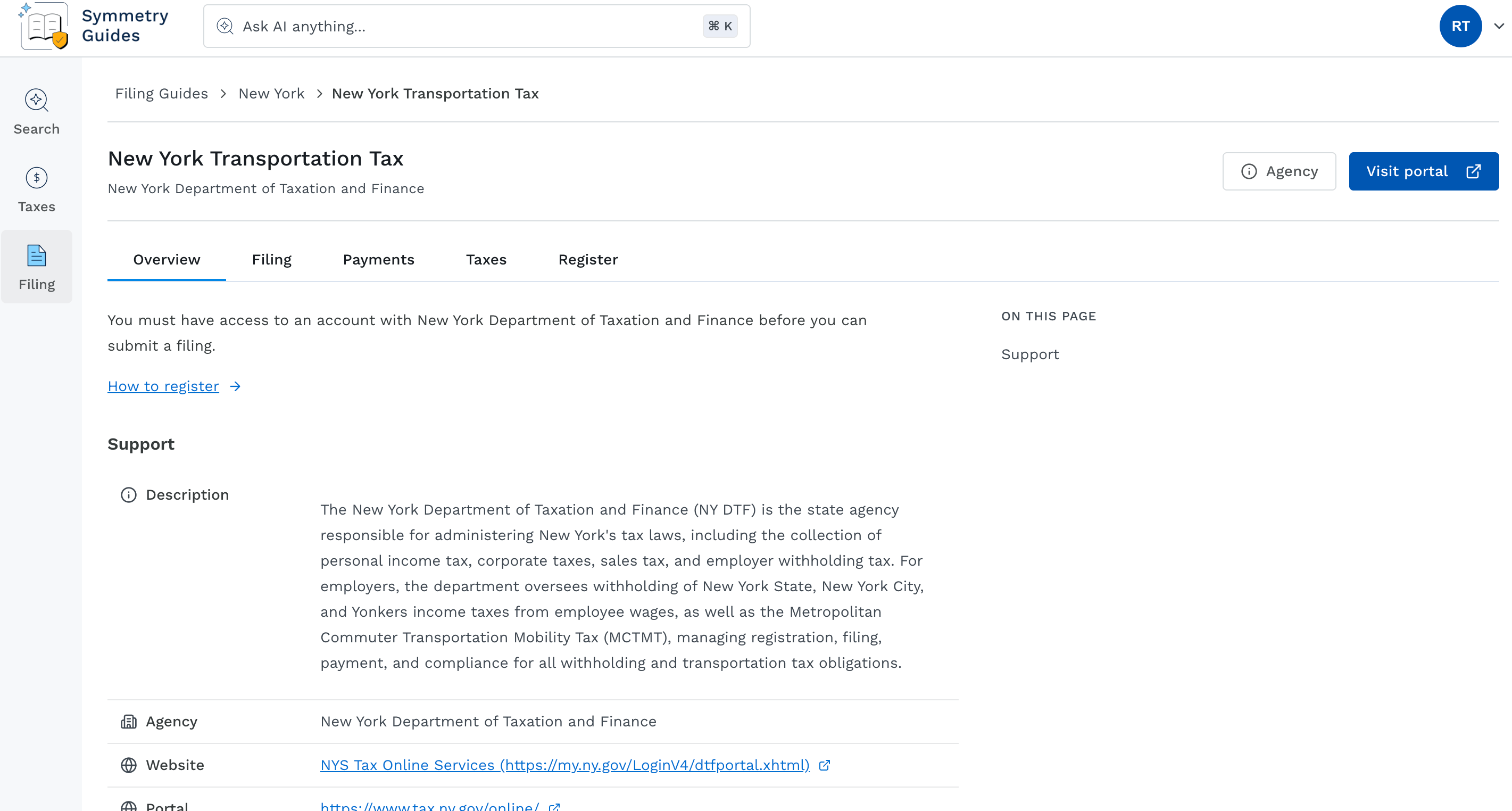
 **Filing** (after clicking into a specific row):
 **Supported jurisdictions**
Currently, Symmetry Guides includes complete filing information for four jurisdictions: Federal, California, New York, and Pennsylvania, with step-by-step filing guides for eight filings across those jurisdictions. Keep checking back as more jurisdictions will continue to be added over time!
## Filing Guides
Each **Tax Program** row within the **Filing** page can be clicked to view tax program-specific information. The specific tax program will have links to the agency website and/or tax portal which will remain static at the top of the page, with clickable tabs below to navigate into each of the filing sections.
**Visible tabs and sections**
The visible tabs and the sections which appear on the [**Overview**](#overview-tab), [**Filing**](#filing-tab), and [**Register**](#register-tab) tabs, along with the headers which form the section table of contents at the right of each of these pages, will appear *if* the information applicable to the tab/section *is available from the agency.* The [**Payments**](#payments-tab) tab will appear if there are validated payment steps associated with the filing.
This means you may see more tabs and sections for one tax program vs. another - this is expected behavior! Symmetry will include all verified agency information that is available for each tax program.
### Overview tab
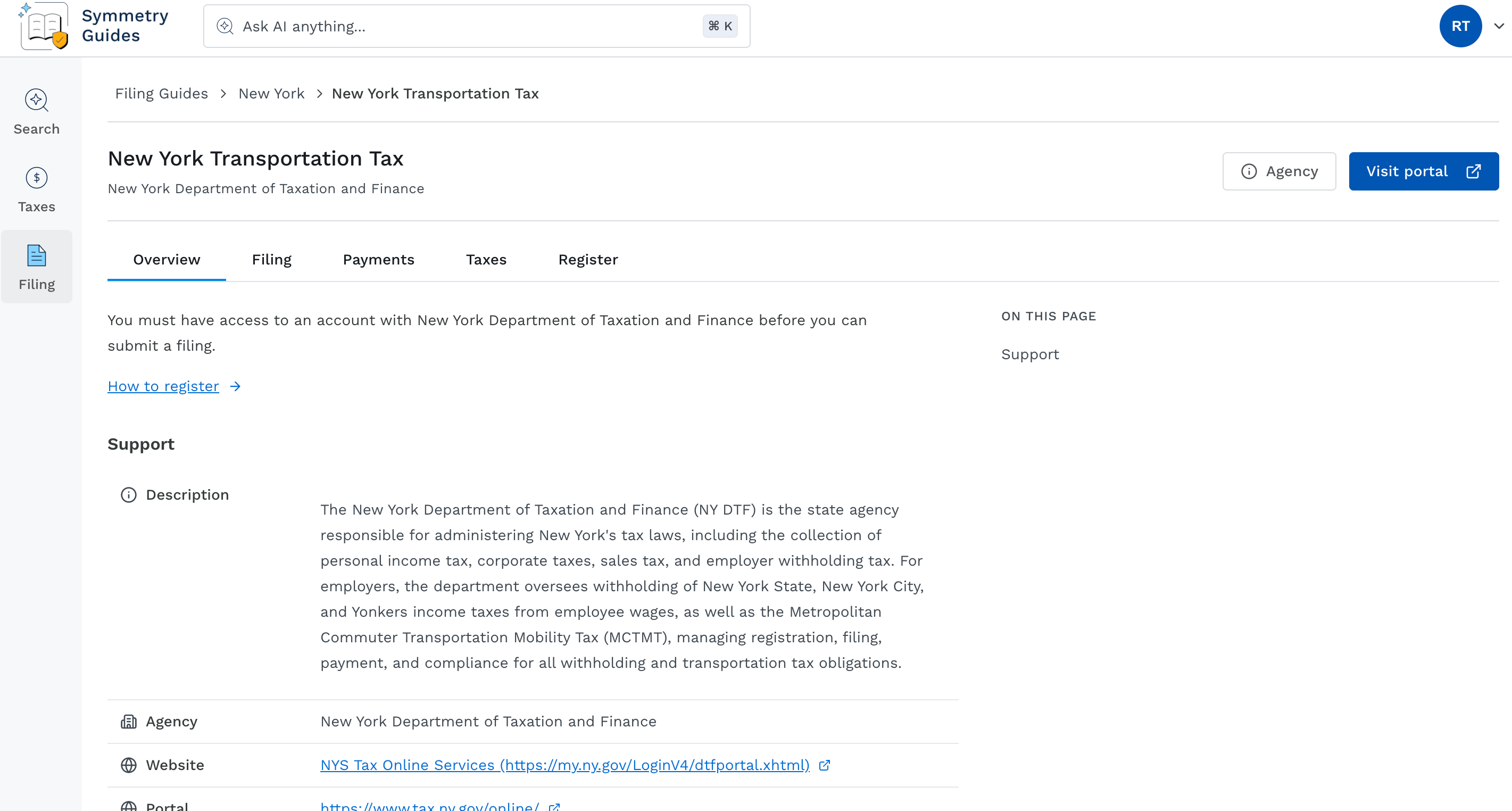
The **Overview** tab provides a brief summary of what is needed before submitting a filing, links to **How to register** (which links to the **Register** tab), and includes a **Support** section which lists agency contact information and details for the tax program.
**Overview** tab:
**Supported jurisdictions**
Currently, Symmetry Guides includes complete filing information for four jurisdictions: Federal, California, New York, and Pennsylvania, with step-by-step filing guides for eight filings across those jurisdictions. Keep checking back as more jurisdictions will continue to be added over time!
## Filing Guides
Each **Tax Program** row within the **Filing** page can be clicked to view tax program-specific information. The specific tax program will have links to the agency website and/or tax portal which will remain static at the top of the page, with clickable tabs below to navigate into each of the filing sections.
**Visible tabs and sections**
The visible tabs and the sections which appear on the [**Overview**](#overview-tab), [**Filing**](#filing-tab), and [**Register**](#register-tab) tabs, along with the headers which form the section table of contents at the right of each of these pages, will appear *if* the information applicable to the tab/section *is available from the agency.* The [**Payments**](#payments-tab) tab will appear if there are validated payment steps associated with the filing.
This means you may see more tabs and sections for one tax program vs. another - this is expected behavior! Symmetry will include all verified agency information that is available for each tax program.
### Overview tab
The **Overview** tab provides a brief summary of what is needed before submitting a filing, links to **How to register** (which links to the **Register** tab), and includes a **Support** section which lists agency contact information and details for the tax program.
**Overview** tab:
 ### Filing tab
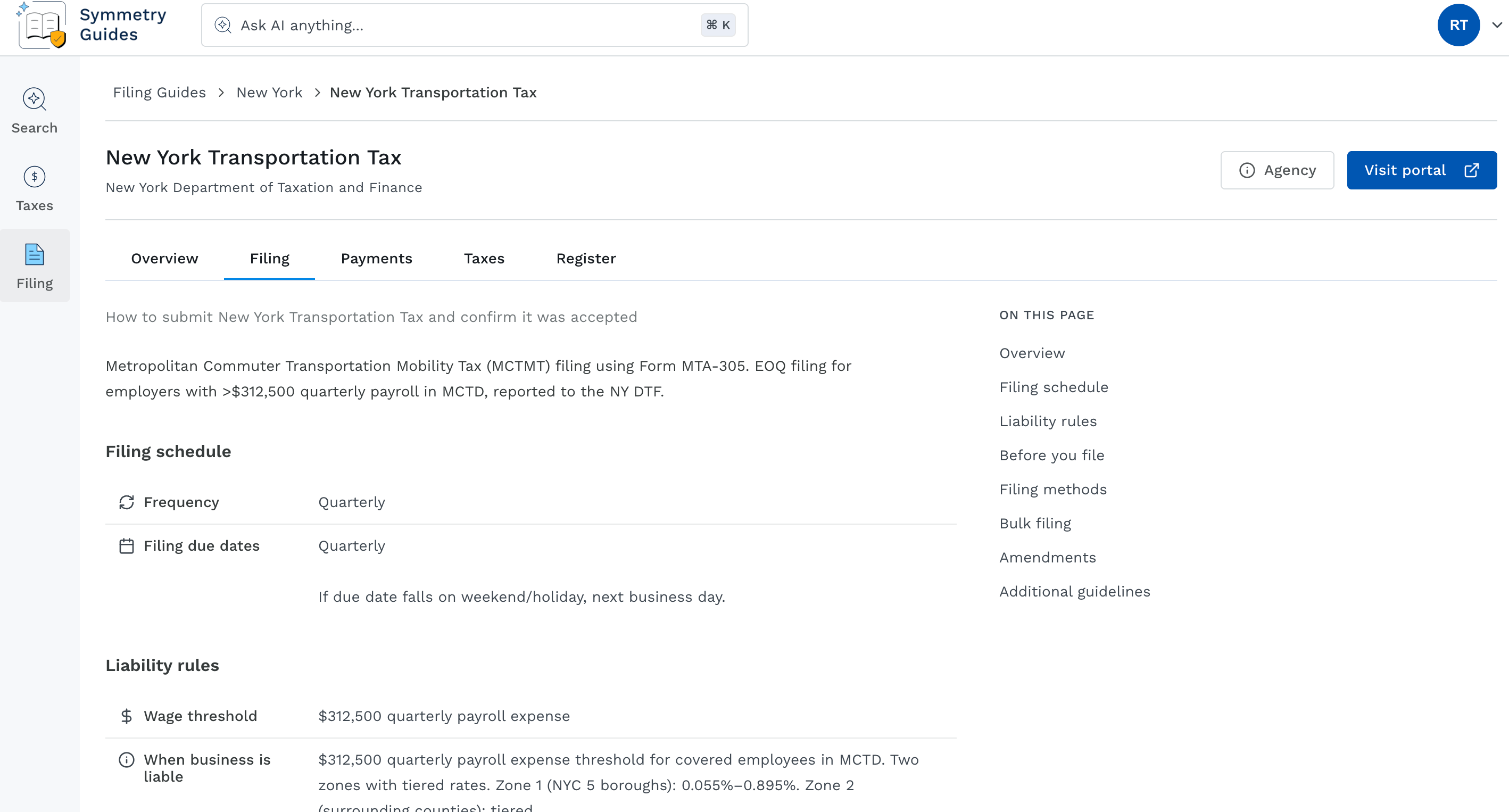
The **Filing** tab provides a summary of key filing information, as well as various sections for filing guidance. A small **table of contents** to the right of the page indicates the sections that exist for the program you are viewing. Which sections appear depend on what information is published for that specific tax program. Possible sections for **Filing** include:
* **Overview**: Provides high-level information about the tax program and filing for the tax program.
* **Filing schedule**: Provides the frequency of filing, along with filing due dates.
* **Liability rules**: Details wage thresholds, employee thresholds, conditions for when a business is liable, the time period requirement, and the deposit rules.
* **Before you file**: Filing requirements, test guidance, and file upload limits with the agency.
* **Filing methods**: Lists the available methods for filing, such as E-file or Paper Filing. Will also provide steps to file, how to know if accepted or rejected, proof of filing, processing times, and form name.
* **Bulk filing**: Provides steps for bulk filing.
* **Amendments**: Provides steps on how to make amendments to the filings.
* **Additional guidelines**: Provides extra guidelines such as processing times.
**Filing** tab for a specific tax program:
### Filing tab
The **Filing** tab provides a summary of key filing information, as well as various sections for filing guidance. A small **table of contents** to the right of the page indicates the sections that exist for the program you are viewing. Which sections appear depend on what information is published for that specific tax program. Possible sections for **Filing** include:
* **Overview**: Provides high-level information about the tax program and filing for the tax program.
* **Filing schedule**: Provides the frequency of filing, along with filing due dates.
* **Liability rules**: Details wage thresholds, employee thresholds, conditions for when a business is liable, the time period requirement, and the deposit rules.
* **Before you file**: Filing requirements, test guidance, and file upload limits with the agency.
* **Filing methods**: Lists the available methods for filing, such as E-file or Paper Filing. Will also provide steps to file, how to know if accepted or rejected, proof of filing, processing times, and form name.
* **Bulk filing**: Provides steps for bulk filing.
* **Amendments**: Provides steps on how to make amendments to the filings.
* **Additional guidelines**: Provides extra guidelines such as processing times.
**Filing** tab for a specific tax program:
 ### Payments tab
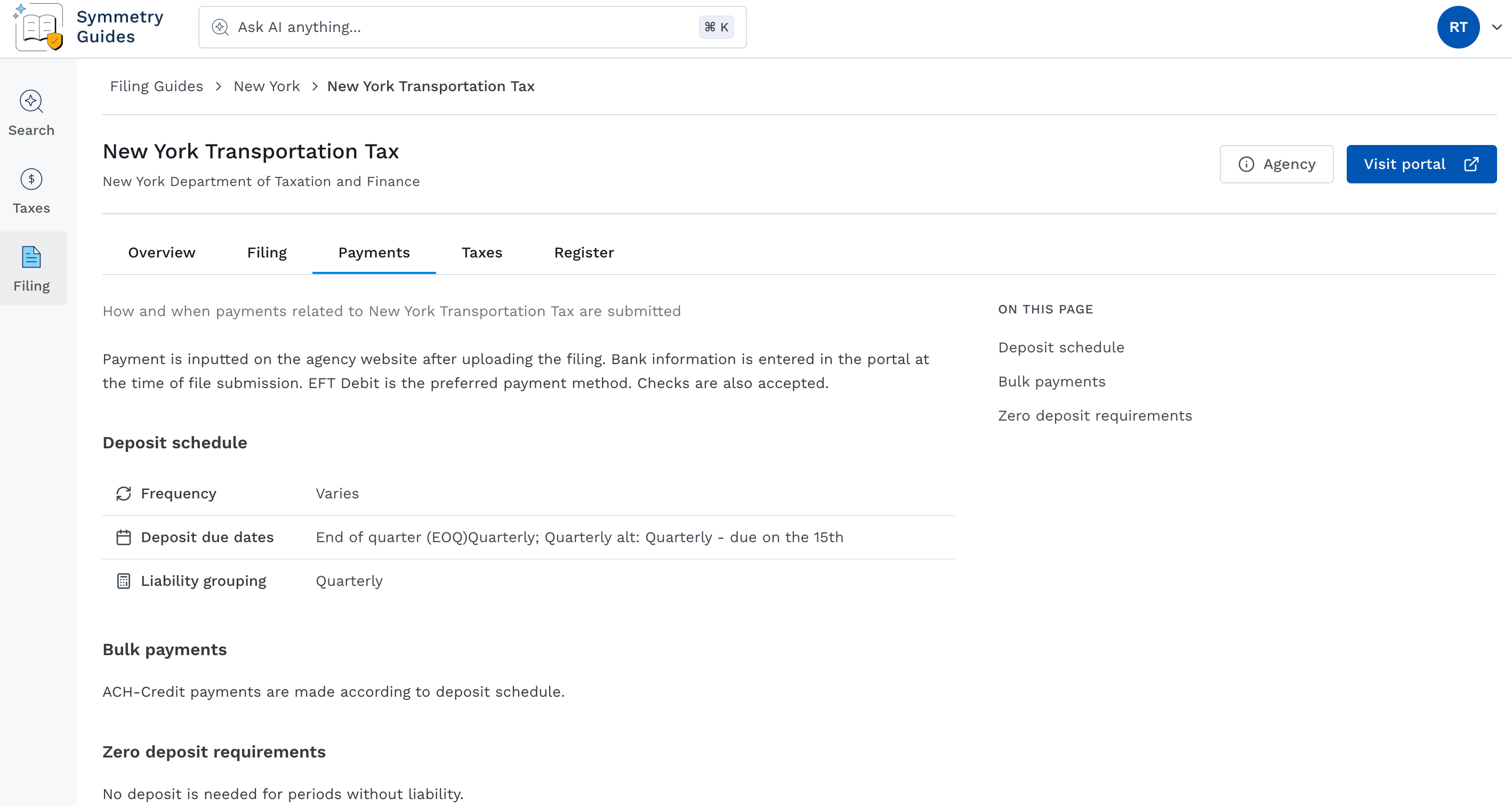
The **Payments** tab focuses on payment-specific requirements for the program when that content has been provided from the agency. Which sections appear depend on what information is published for that specific tax program. Possible sections for **Payments** include:
* **Deposit schedule**: Identifies deposit frequency, deposit due dates, and liability grouping.
* **Payment methods**: Provides accepted payment methods by the agency.
* **Bulk payments**: Provides deposit detail for bulk payments.
* **Zero deposit requirements**: Details zero deposit requirements for periods with or without liability.
**Payments** tab for a specific tax program:
### Payments tab
The **Payments** tab focuses on payment-specific requirements for the program when that content has been provided from the agency. Which sections appear depend on what information is published for that specific tax program. Possible sections for **Payments** include:
* **Deposit schedule**: Identifies deposit frequency, deposit due dates, and liability grouping.
* **Payment methods**: Provides accepted payment methods by the agency.
* **Bulk payments**: Provides deposit detail for bulk payments.
* **Zero deposit requirements**: Details zero deposit requirements for periods with or without liability.
**Payments** tab for a specific tax program:
 ### Taxes tab
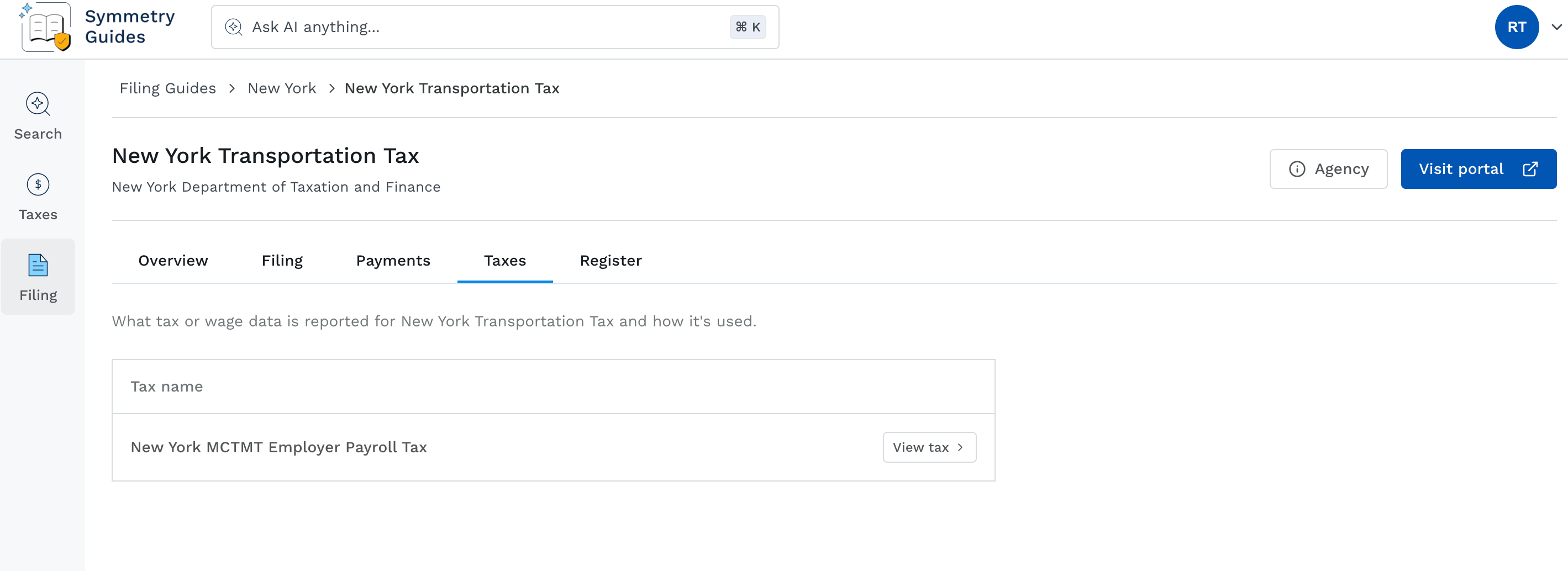
The **Taxes** tab lists taxes associated with the tax program you've clicked into. The tax name is listed, along with a button which will route you to the **Tax** page for tax details when clicked.
**Taxes** tab for a specific tax program:
### Taxes tab
The **Taxes** tab lists taxes associated with the tax program you've clicked into. The tax name is listed, along with a button which will route you to the **Tax** page for tax details when clicked.
**Taxes** tab for a specific tax program:
 ### Register tab
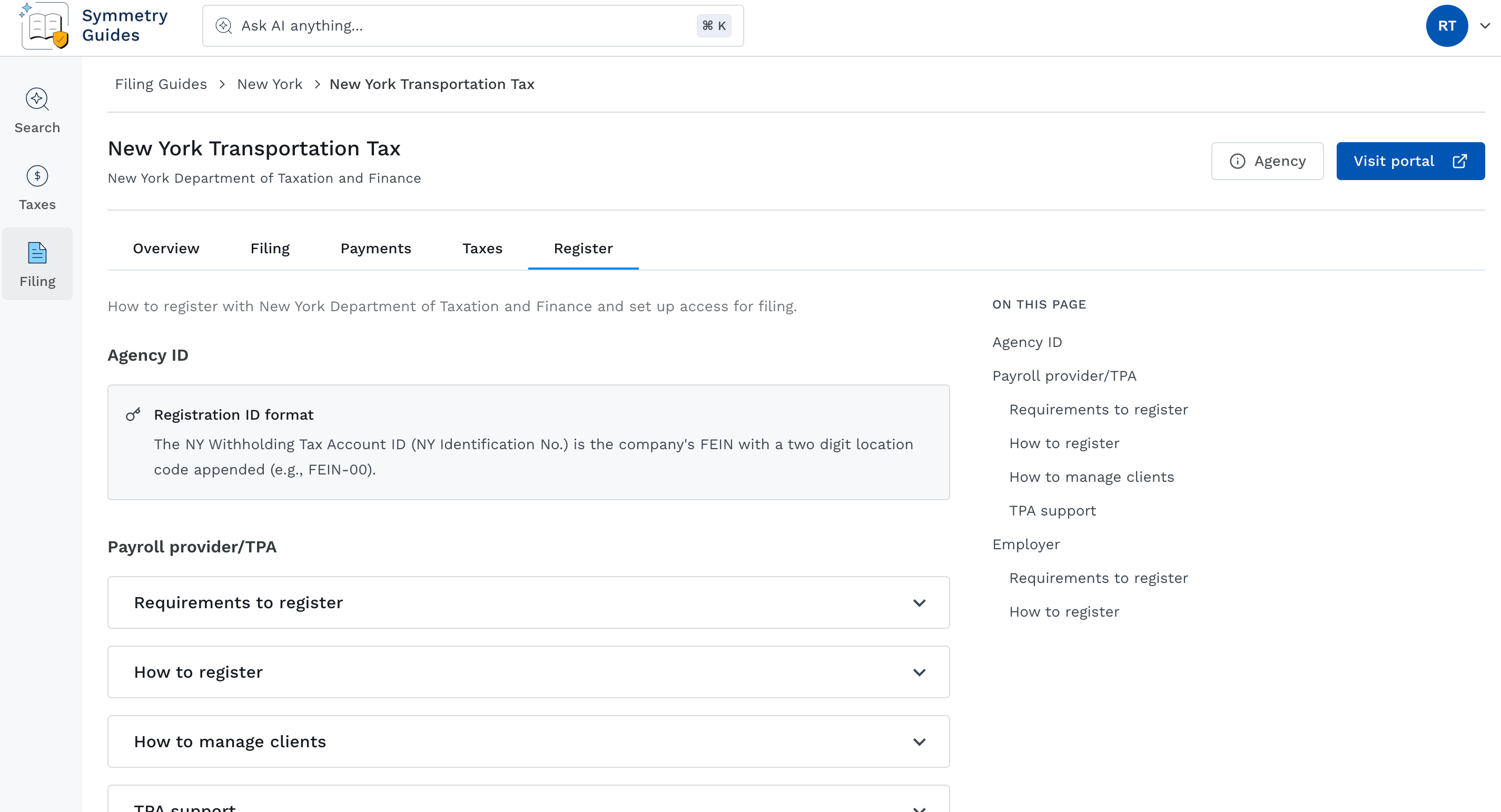
The **Register** tab provides details on how to register with the agency. A small **table of contents** to the right of the page indicates the sections that exist for the program you are viewing. Which sections appear depend on what information is published for that specific tax program. Possible sections for **Register** include:
* **Agency ID**: Provides details on the **Registration ID format** for registering with the agency.
* **Payroll provider/TPA**: Includes expandable accordions which detail **Requirements to register**, **How to register**, **How to manage clients**, and **TPA support**.
* **Employer**: Includes expandable accordions which detail **Requirements to register** and **How to register**.
**Register** tab for a specific tax program:
### Register tab
The **Register** tab provides details on how to register with the agency. A small **table of contents** to the right of the page indicates the sections that exist for the program you are viewing. Which sections appear depend on what information is published for that specific tax program. Possible sections for **Register** include:
* **Agency ID**: Provides details on the **Registration ID format** for registering with the agency.
* **Payroll provider/TPA**: Includes expandable accordions which detail **Requirements to register**, **How to register**, **How to manage clients**, and **TPA support**.
* **Employer**: Includes expandable accordions which detail **Requirements to register** and **How to register**.
**Register** tab for a specific tax program:
 ## Demo Videos
### Explore Taxes
Watch a quick walkthrough of exploring Taxes in Symmetry Guides.
### Explore Filing
See Symmetry Guides Filing navigation in action with the below demo video.
## Demo Videos
### Explore Taxes
Watch a quick walkthrough of exploring Taxes in Symmetry Guides.
### Explore Filing
See Symmetry Guides Filing navigation in action with the below demo video.